WINDOWS UPDATE REPAIR
How to use the app
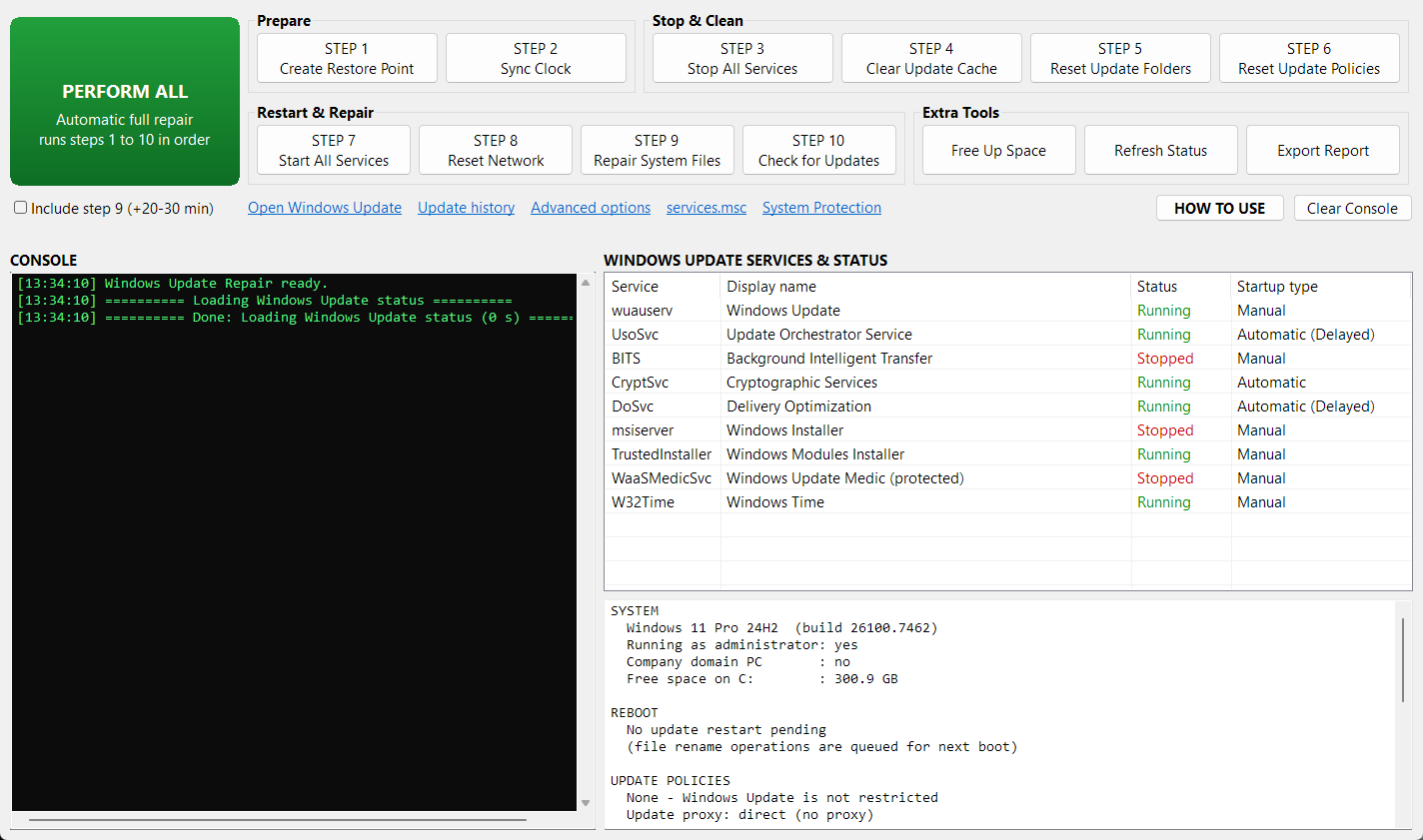
Check your PC’s update status, choose a repair and follow its progress from one control panel.
1. Start here
- Save your work and connect to the internet.
- Open Windows Update Repair and approve its Windows administrator prompt.
- Click Refresh Status to inspect services, restart status and update history.
- If a restart is pending, restart the PC and try Windows Update first.
On a managed work PC, ask your IT administrator before changing policies or network settings.
2. Run an automatic repair
Click PERFORM ALL, read the confirmation and choose Yes when you are ready. Choose No to return without starting the repair.
The sequence attempts to create a restore point, syncs the clock, stops update services, clears the cache, rebuilds update folders, resets eligible update settings, restarts services and starts a fresh update scan.
Select Include step 9 if you also want to run DISM and SFC system file repair. This can take 20–30 minutes or longer. A restore point is not guaranteed; check the console result.
3. Use an individual tool
The numbered STEP buttons follow the same order as the full repair. You can select the action you need instead of running the whole sequence. Read each confirmation before proceeding.
- Create Restore Point — attempt a Windows restore point.
- Sync Clock — synchronize the system time.
- Stop All Services — stop the update-related services.
- Clear Update Cache — clear downloaded update cache files.
- Reset Update Folders — rebuild SoftwareDistribution and catroot2.
- Reset Update Policies — back up and reset update policies where applicable.
- Start All Services — start the update-related services.
- Reset Network — troubleshoot update proxy, DNS and server connectivity.
- Repair System Files — run DISM and SFC.
- Check for Updates — search for available updates.
The Extra Tools section also includes Free Up Space, Refresh Status and Export Report.
4. Follow progress and check again
Follow the CONSOLE and allow the current task to finish. The fixed services panel shows all nine services and their current states. Stopped can be normal for services that run only when needed; it does not by itself mean a repair failed.
After repairs, restart the PC, open Windows Update and check for updates again. Some problems require additional troubleshooting.
Network and disk activity lights
The Network Access and Hard Drive Access lights and their labels flash red when Windows performance counters detect activity.
- Network:
\Network Interface(*)\Bytes Total/secmeasures traffic sent and received. - Disk:
\PhysicalDisk(_Total)\Disk Bytes/secmeasures disk reads and writes across physical drives, including SSDs.
The app samples these counters every half-second. They measure whole-PC activity, including other applications, rather than Windows Update alone. Activity does not prove that a repair is progressing. When a sample shows no activity, the indicators remain dim. N/A means a counter is unavailable.
5. Save a report or get help
If the problem remains, select Export Report to save logs to a folder on your Desktop. Review the files before sharing them with your support technician. Reports stay local unless you share them.
Use HOW TO USE in the app to open the built-in guide. Opening the guide does not run repairs.
Windows Update Repair is developed by DooToob and is not affiliated with or endorsed by Microsoft.