Teams file search
File Finder for Microsoft Teams Chat
Remember the conversation. Find the file link.
Find file links shared in locally cached Microsoft Teams chats. Search by keyword, person or phrase, or describe what you need with bundled offline AI. Review file locations, copy links, and save selected locations as a PDF or Excel reference list.
Published · In Microsoft Store · Product ID 9MXV4JC7RRGS
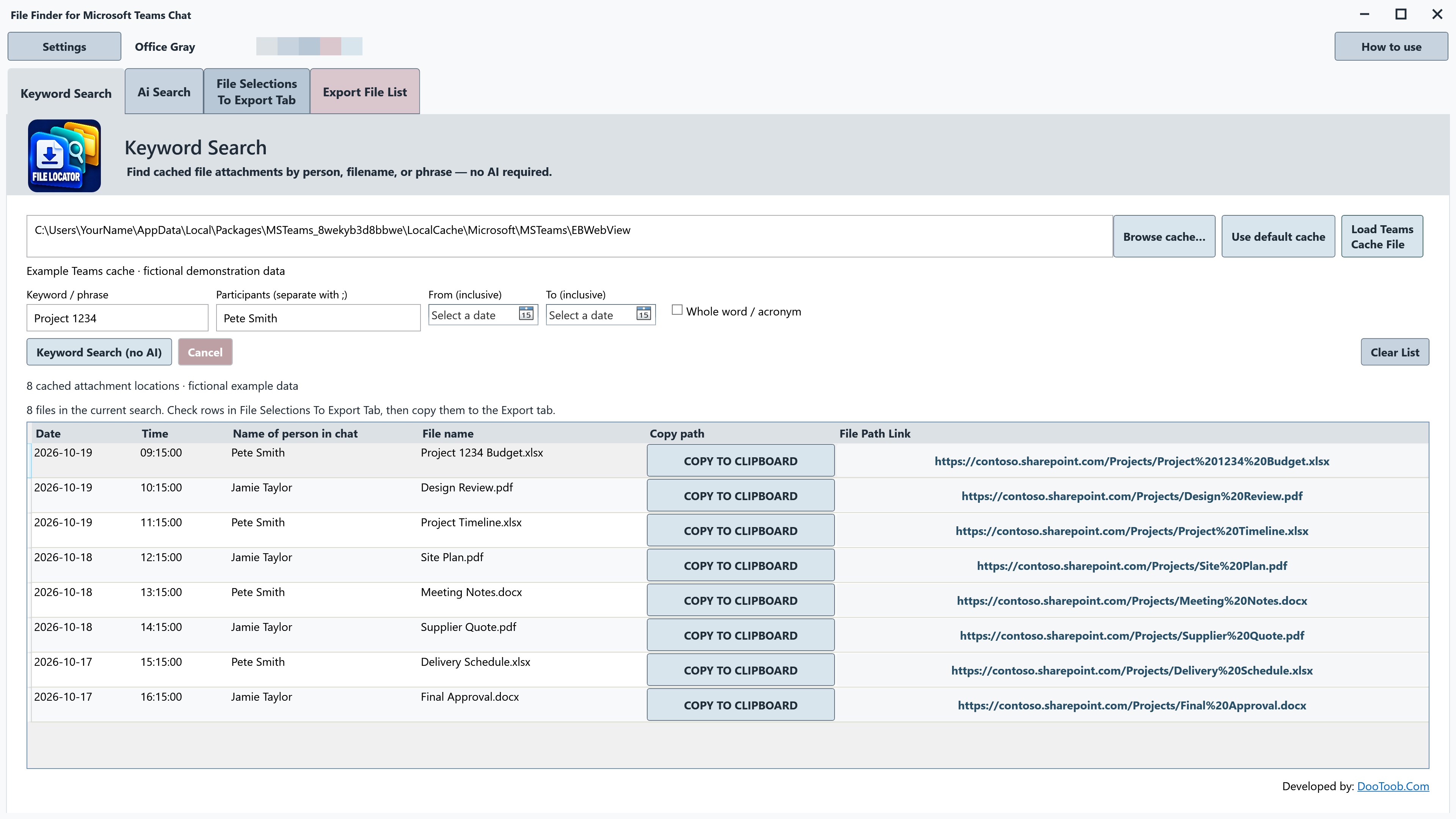
The current Microsoft Store listing
What you can do.
File Finder for Microsoft Teams Chat
Find the file link you remember from a Teams conversation—without scrolling through every message.
A budget spreadsheet, a project PDF, a meeting document: you may remember who shared it or a phrase from the conversation, but not where the file lives. File Finder for Microsoft Teams Chat helps you search readable Teams chat data already stored on your Windows PC and turn matching attachment links into a useful reference list.
Find File Locations With Keyword Search
Search by a file name, person, keyword or phrase. Use participant and inclusive date filters to narrow the available results, or enable whole-word matching when you need a closer match. Direct Keyword Search works without AI and does not require internet access to search the readable local cache.
Describe What You Need With Local Ai
Prefer to ask in your own words? Use Ai Search to describe the person, project, file name or other detail you remember. For example: “Search chats from Pete Smith with the text Project 1234.” The bundled AI interprets your request locally on your PC. No internet AI service account, API key or separate model download is needed. Searching available local data works offline; opening a remote file link is a separate action and may require a connection and sign-in.
Review The Details Before You Open A Link
See the date, time, person, file name and file-location link together in a results list. Copy a complete location to the clipboard or open its link. This helps you move from the conversation clue you remember to the location that was shared, while keeping the original file where it belongs.
Choose The File Locations You Want To Keep
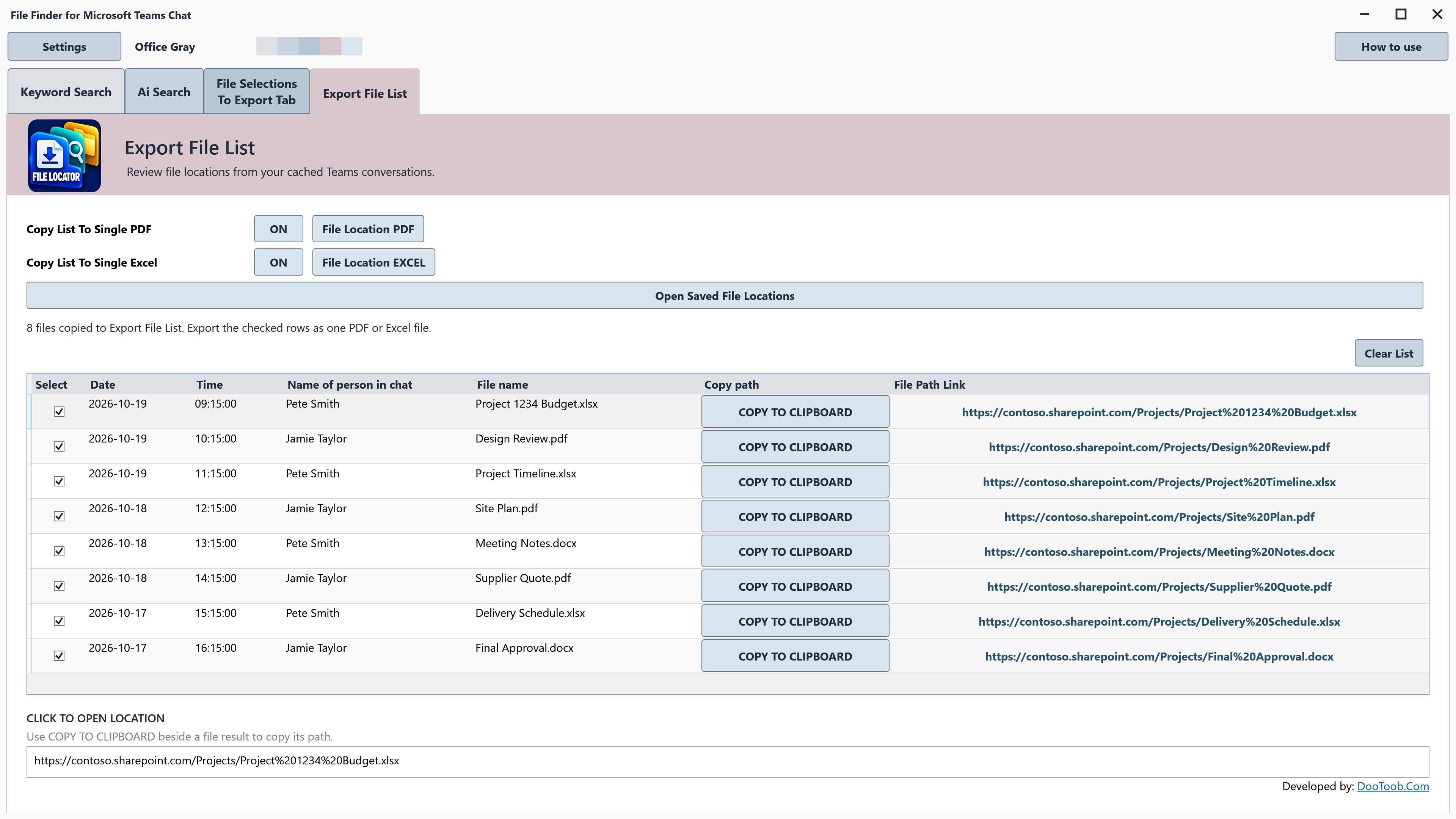
Check individual rows in File Selections To Export Tab, then copy those selections to the Export File List. If the whole result set is useful, transfer all current results. Review the export list before saving so your reference contains the locations you actually need.
Save A Pdf Or Excel Reference List
Export checked file-location rows into one PDF or Excel workbook. Choose a save location each time, and use Open Saved File Locations to return to folders used during the current session. Keep a compact project reference or a list of links to revisit later. These exports contain file-location information; they do not download, combine or include the attachment files themselves.
Work With The Teams Data Available On Your Pc
Use the default local cache or select a readable local cache repository or backup. The app searches that available data rather than connecting to your Microsoft 365 account to retrieve a complete chat archive. What you can find depends on what Teams has cached and what remains readable. A file shared in a conversation cannot be found if its reference is absent from the selected cache.
Make The Workspace Comfortable
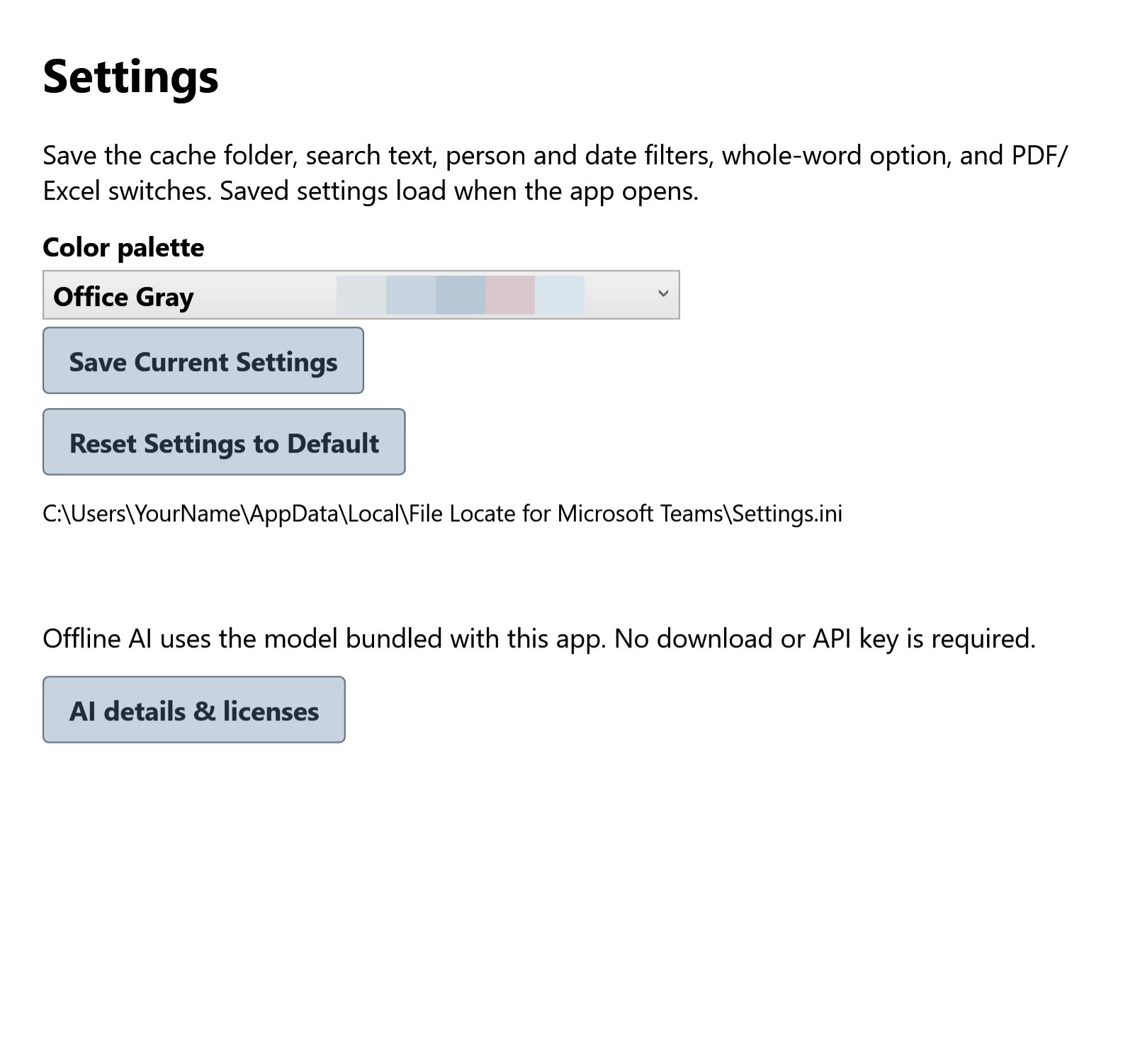
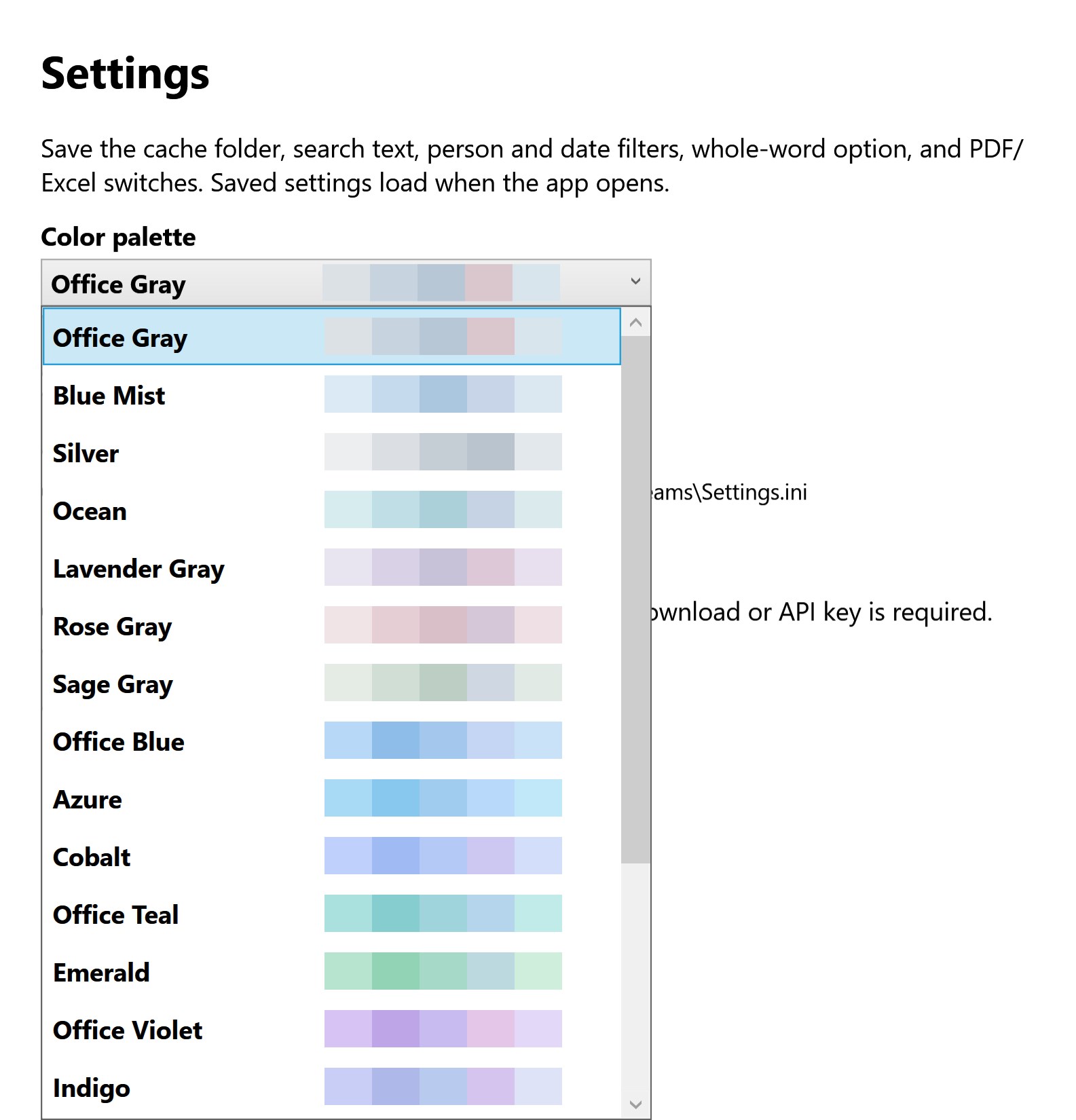
Choose from 20 color palettes and save your preferences locally. An illustrated How to use guide includes numbered callouts and inline screenshot zoom, so you can follow the search, selection and export workflow at your own pace.
Useful For Everyday File Hunting
Find a document mentioned during a project, locate a spreadsheet shared by a colleague, or gather selected attachment locations into a list for later reference. Standard search gives you direct control over the terms; local AI provides another way to express what you remember.
Important Limits
File Finder locates links and file references in available local Teams data. It does not download attachments, retrieve uncached conversations, recover deleted server history or provide a complete Teams backup. Opening OneDrive, SharePoint or other cloud links may require internet access, the correct Microsoft 365 account and permission to the file. Links may stop working if files are moved, removed or access changes. Follow your organization’s rules when searching or exporting workplace information.
File Finder for Microsoft Teams Chat is independently developed and is not affiliated with, sponsored by or endorsed by Microsoft Corporation. Microsoft, Microsoft Teams and Excel are trademarks of Microsoft Corporation.
How to use
From opening the app to a useful result.
- 1
Select a supported local chat cache or backup.
- 2
Search for the person, phrase or file clue you remember.
- 3
Review the conversation context and found locations.
- 4
Copy useful links or export the selected reference list.
See it before you get it
Explore the app.
All 7 screenshots from the current Store listing. Select any image for the full-size original.



Open the Microsoft Store listing to see the current price, trial options, system requirements and reviews.
Your purchase and installation are handled by Microsoft Store.
App details.
Publisher: Team2020. Availability, requirements and purchase options are shown on the live Microsoft Store page.
App information and screenshots checked against the public Store listing on October 20, 2026.
Read the full Store listing ↗ · Privacy informationFile Finder for Microsoft Teams Chat
Remember the conversation. Find the file link.
Get it in Microsoft Store ↗← Explore all Microsoft appsMore from DooToob